3D ANZ
Rhino 9 for Windows or Mac

Robert McNeel & Associates
Rhino 9 for Windows or Mac
Rhino 9 for Windows or Mac
Choose the appropriate licence and current market price in the 3D ANZ licence selector.
Rhino 9 — develop your ideas in three dimensions
Rhino 9 brings new and improved tools for modelling, surface analysis, drafting, visualisation and Grasshopper workflows. Explore the current feature highlights below, then choose the licence configuration that suits your work.
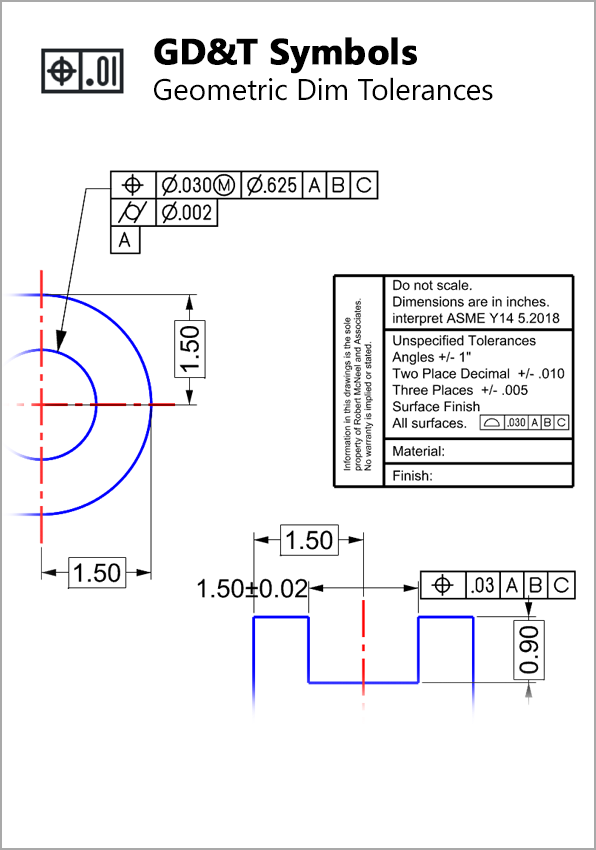 GDT Symbols
Create GD&T feature-control frames to communicate permitted geometric variation on manufacturing drawings.
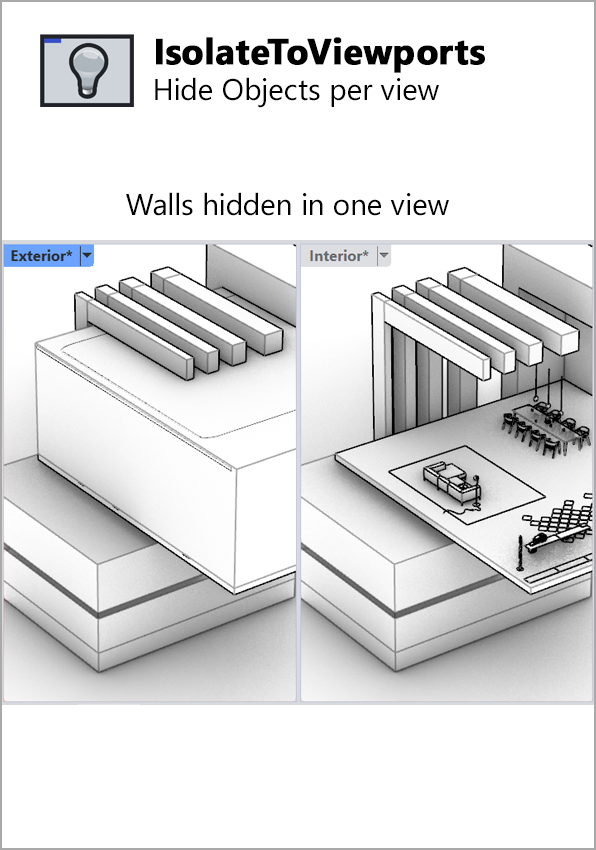 Isolate To Viewports
Control object visibility across selected viewports to concentrate on the geometry you need to inspect.
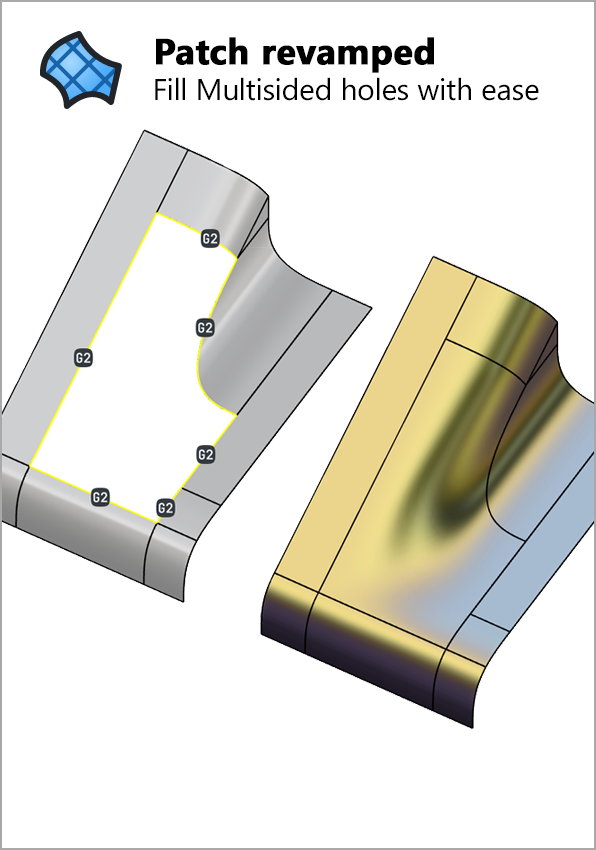 Patch Revamped
Build multi-sided surfaces from edges, curves and points, with positional, tangential or curvature continuity controls.
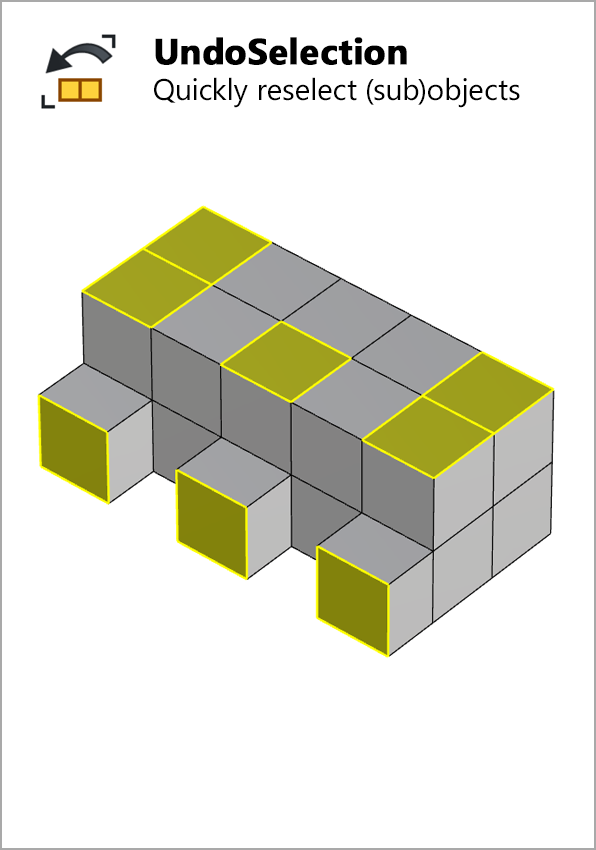 Undo Selection
Recover earlier object selections without undoing modelling changes, using a separate selection history.
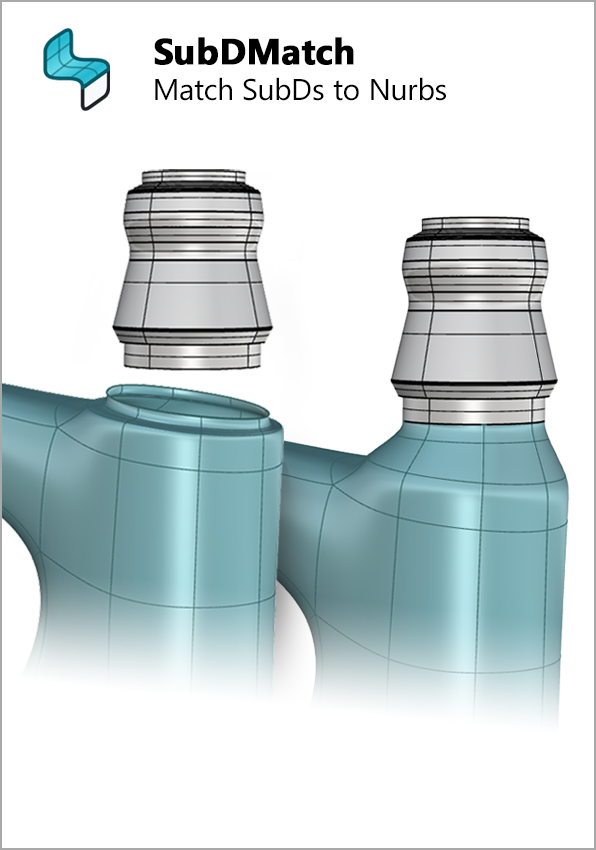 SubD Match
Adjust SubD boundary chains to reference geometry for more controlled transitions and connections.
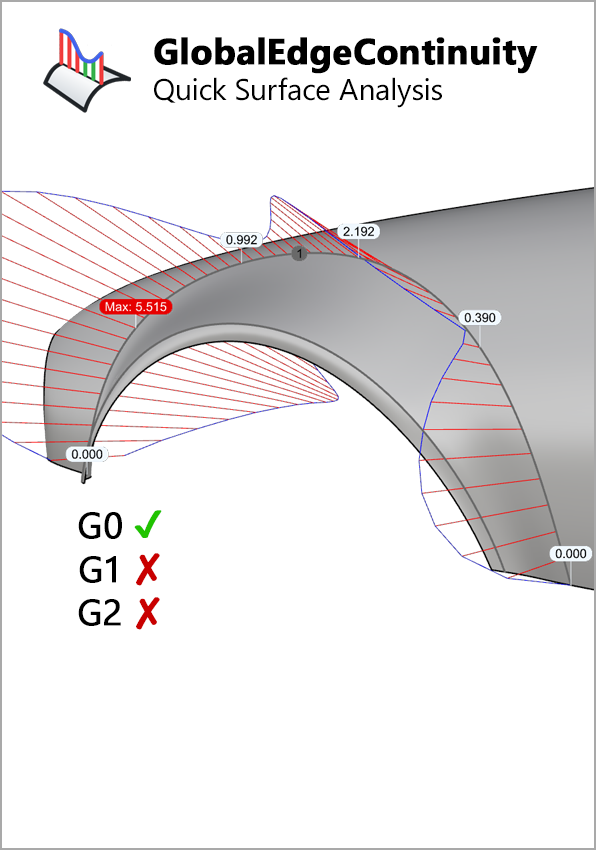 Global Edge Continuity
Assess position, tangency and curvature continuity across surface boundaries with GlobalEdgeContinuity.
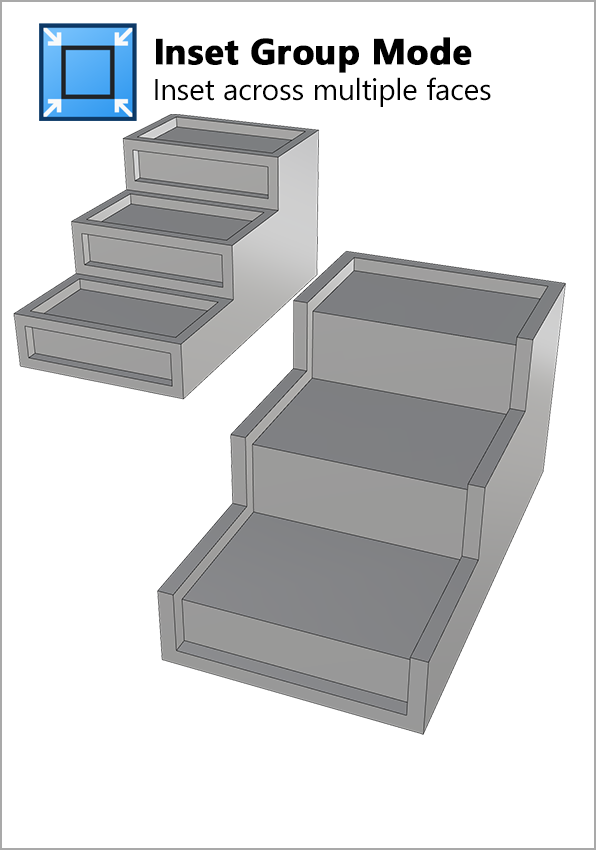 Inset Group Mode
Create a shared inset boundary across adjoining polysurface faces, useful for details that span several surfaces.
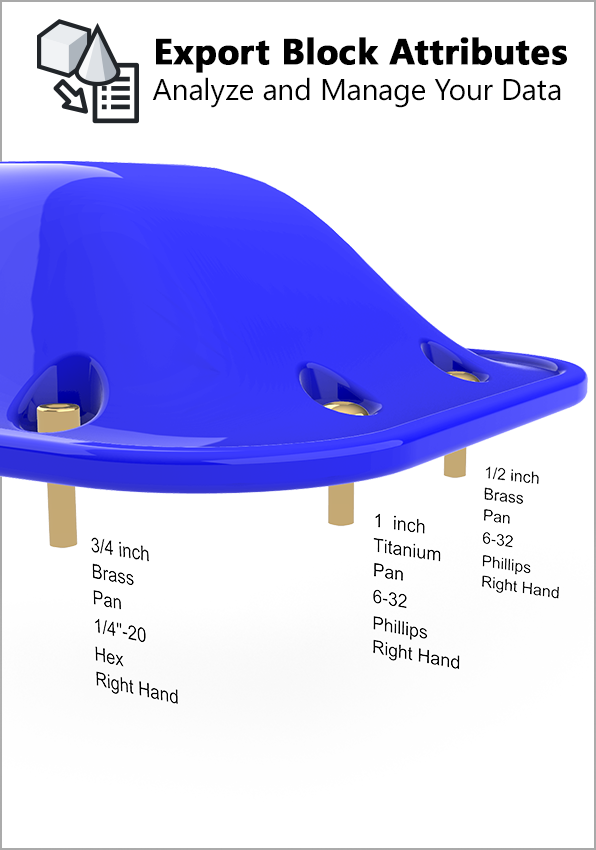 Export Block Attributes
Extract block attribute information into a CSV file for use in spreadsheets and downstream reporting.
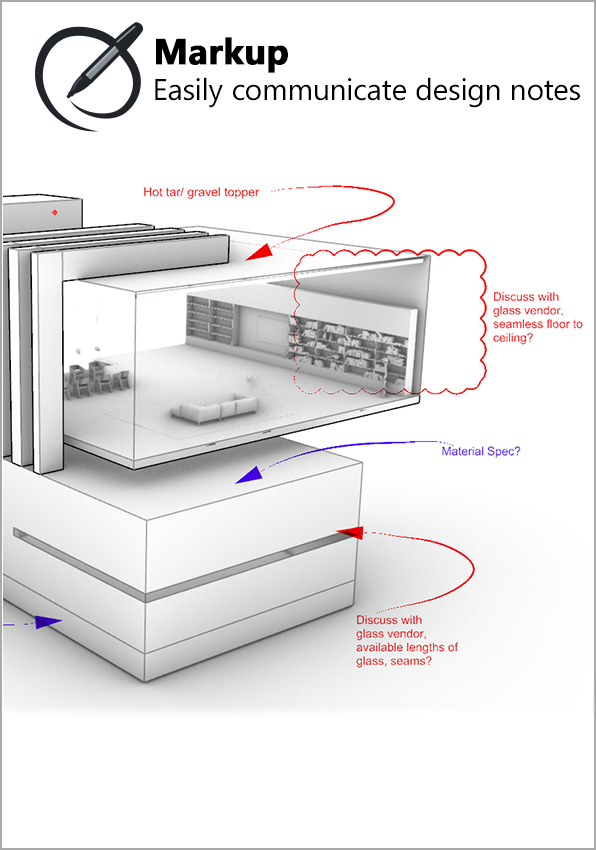 Markup
Draw and annotate directly over a view to record feedback without changing the underlying model geometry.
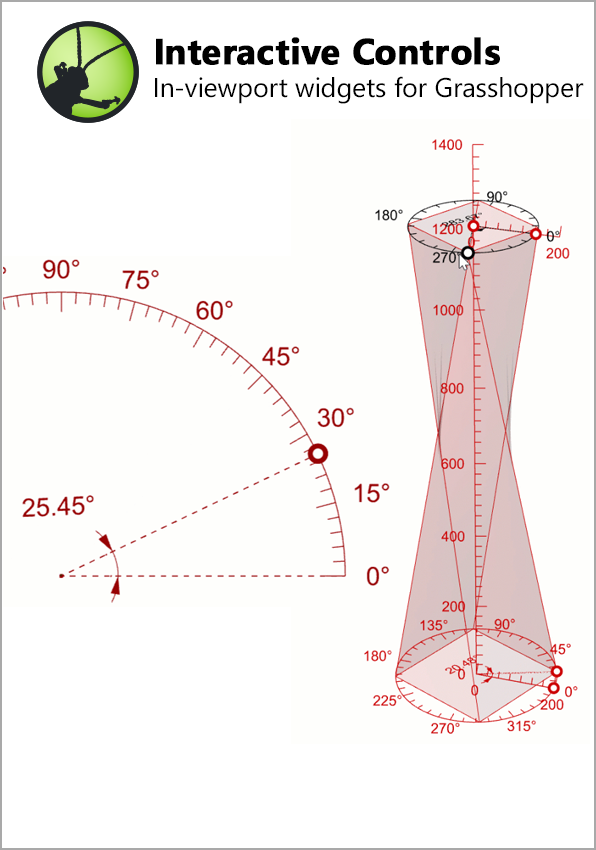 GH Interactive Widgets
Adjust Grasshopper parameters through curve and angular widgets directly in the Rhino viewport.
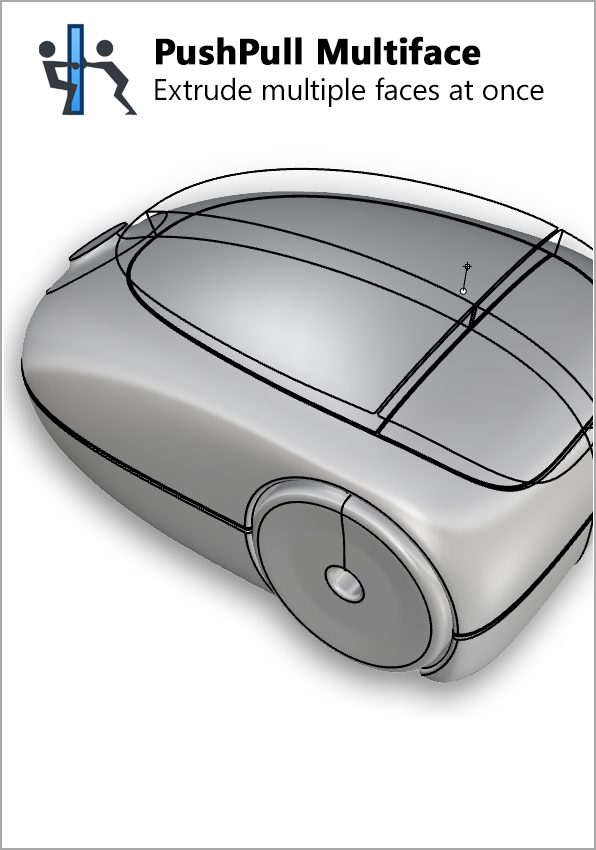 Push Pull ID
Modify regions across multiple polysurface faces when developing features such as ribs, bosses and wall thicknesses.
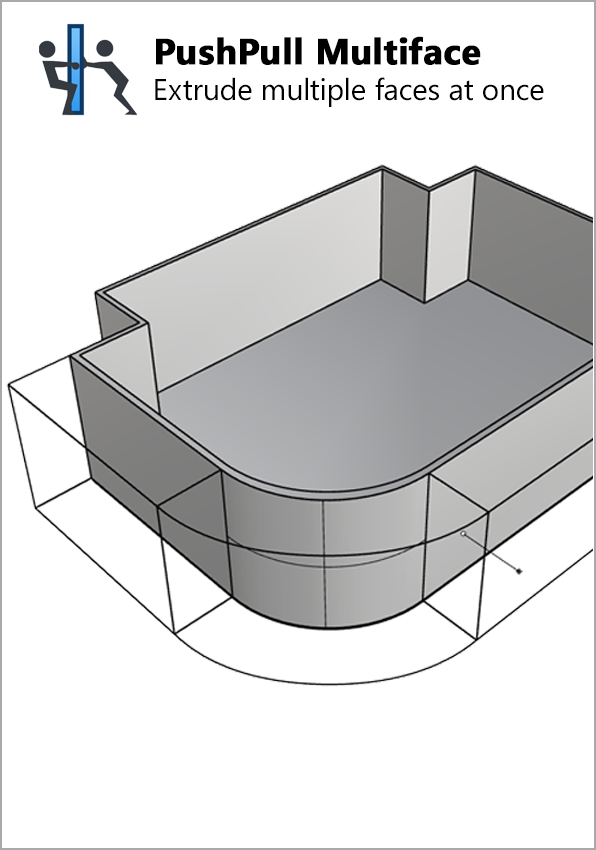 Push Pull Arch
Use multi-face PushPull to explore building masses and connected wall geometry with fewer separate editing operations.
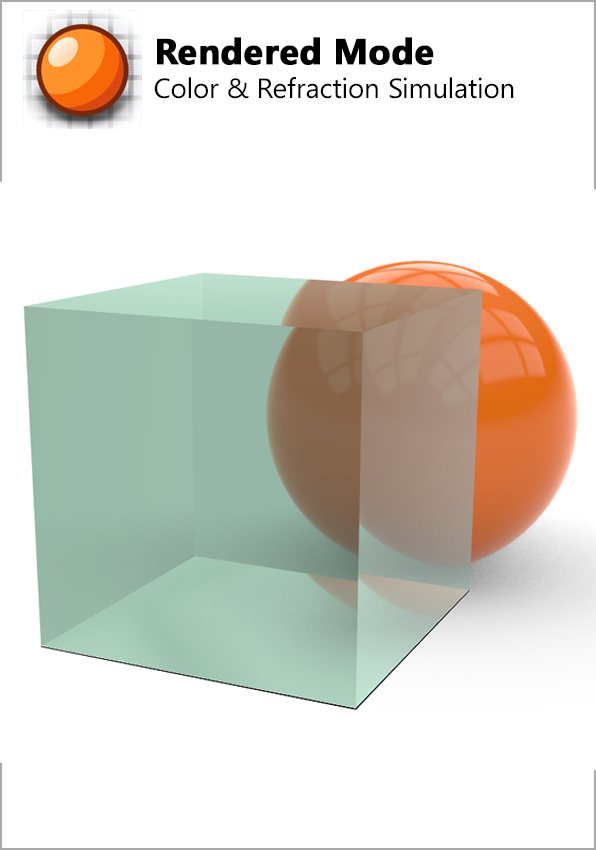 Reflection Refraction
Preview transparent materials with their colour and light-bending effects in Rendered display mode.
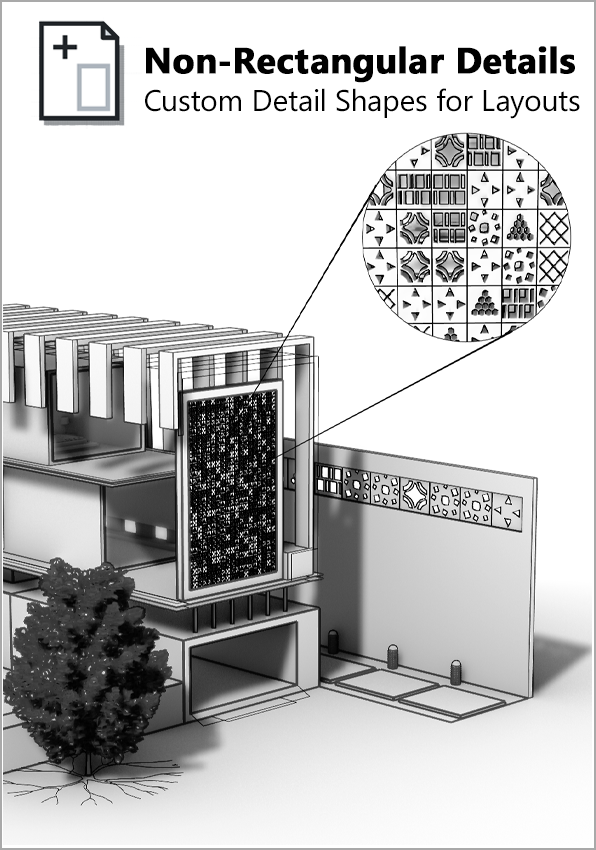 Non Rectangular Details Arch
Frame layout detail views with closed-curve boundaries instead of being limited to rectangular viewports.
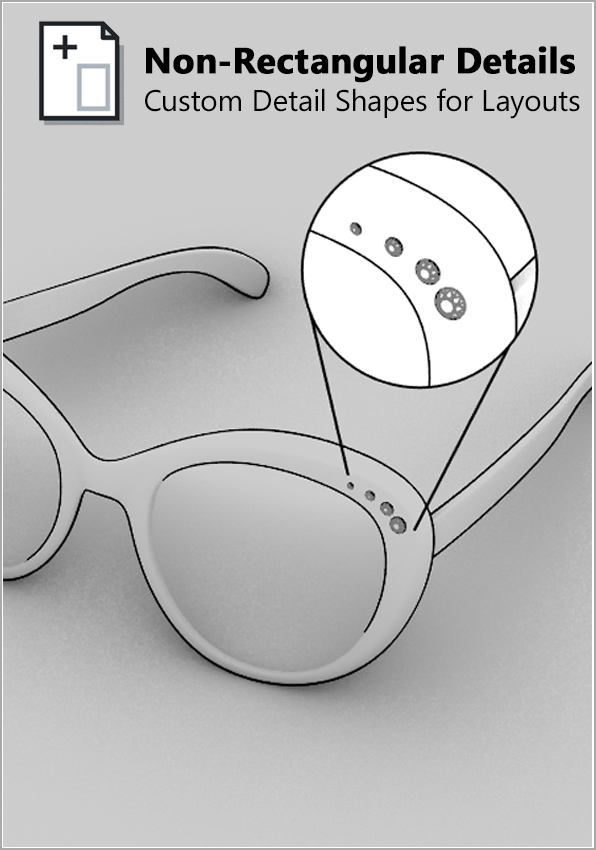 Non Rectangular Details ID
Shape detail-view boundaries to suit the part or illustration being presented on a drawing sheet.
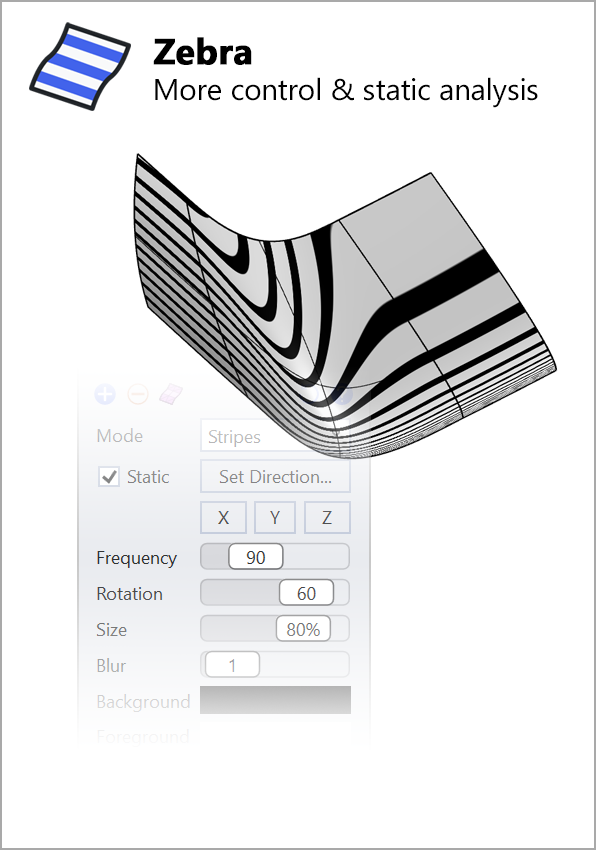 Zebra
Zebra
Inspect surface flow and continuity with the rewritten Zebra tool, including static stripe analysis.
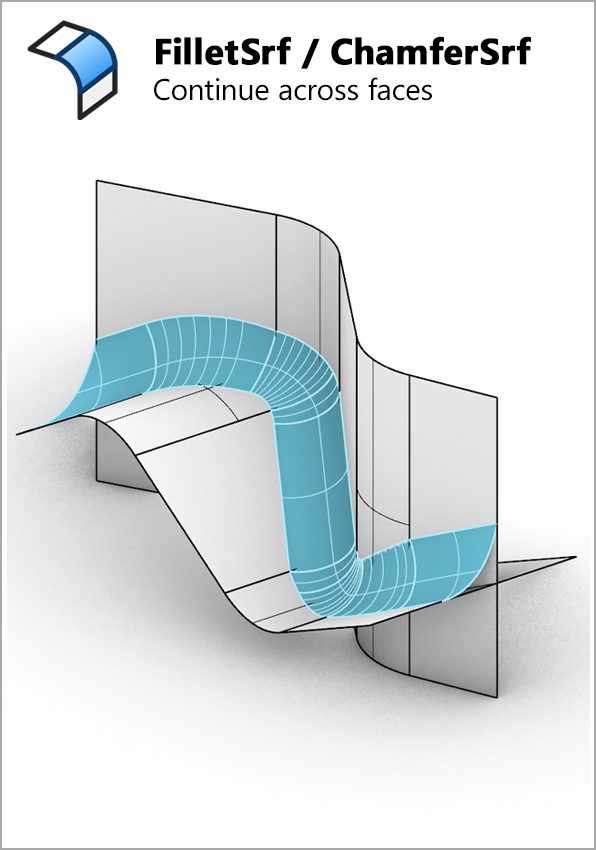 Fillet Chamfer Srf
Use improved fillet and chamfer tools, including options to continue across faces and create simpler surfaces where possible.
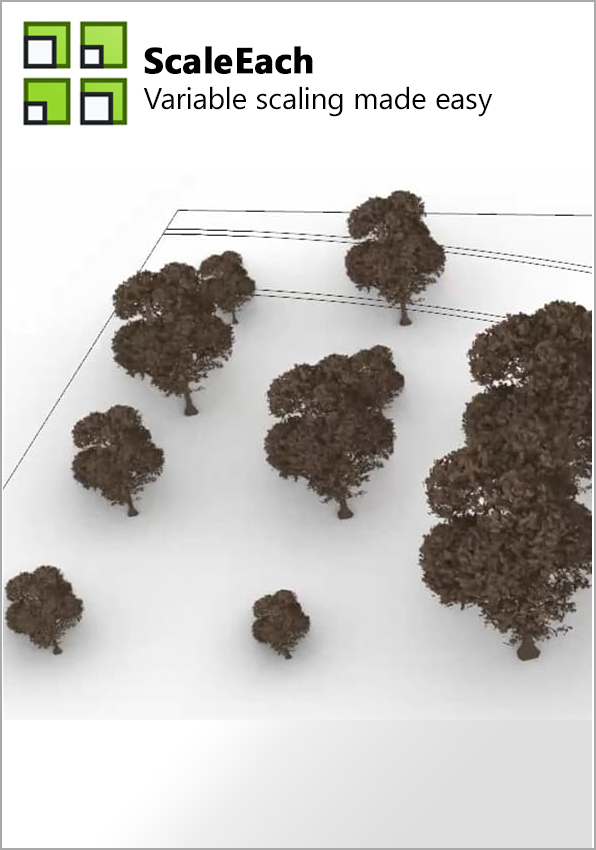 Scale Each Arch
Resize multiple objects independently with ScaleEach when developing repeated elements in a building model.
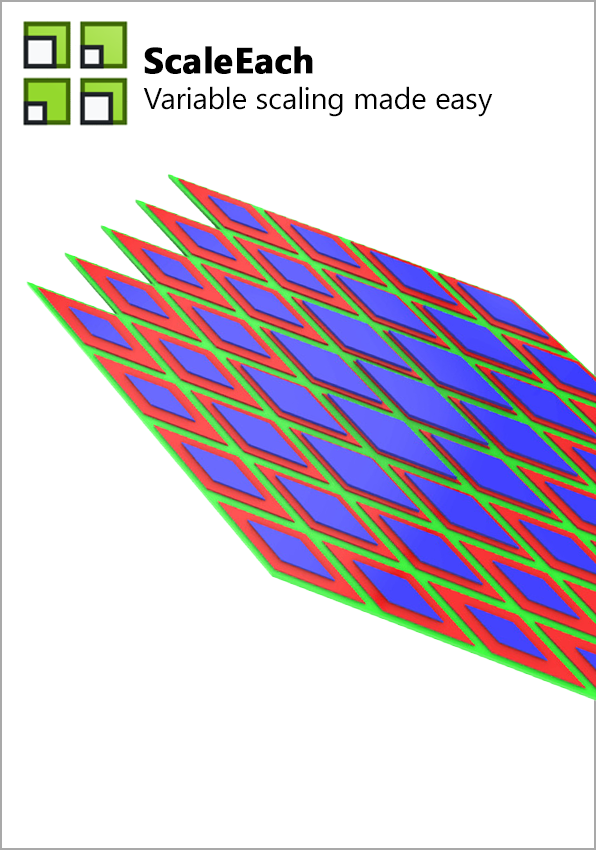 Scale Each ID
Adjust several components independently using ScaleEach, rather than treating the selection as one combined object.
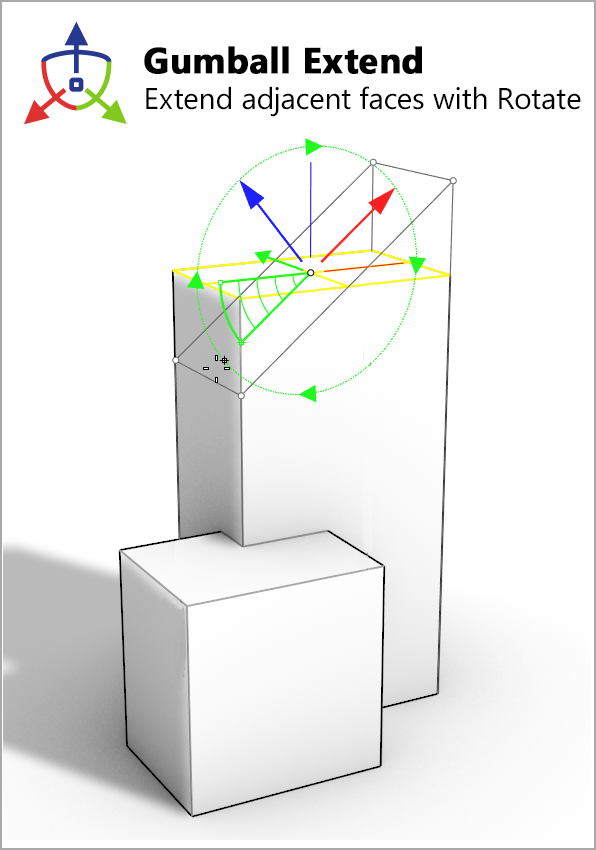 Gumball Extend
Refined Gumball controls improve everyday editing, including orientation, location and extension workflows.
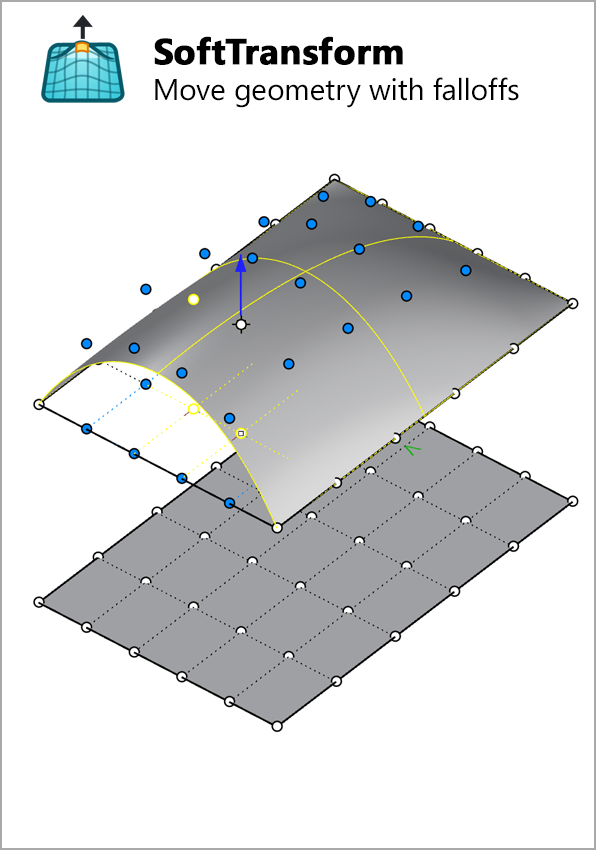 Soft Transform
Reshape groups of control points with a falloff influence for gradual changes to surrounding geometry.
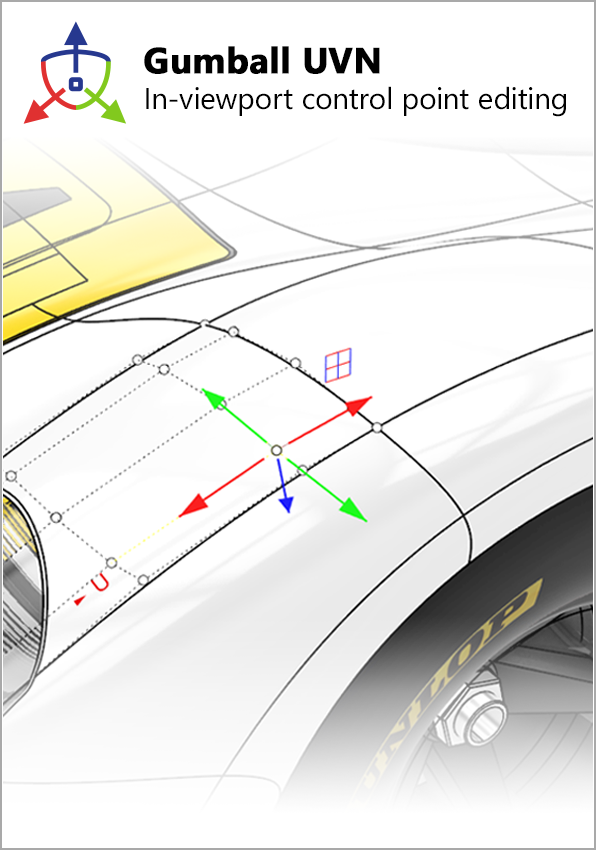 Gumball UVN
Align the Gumball to selected control-point directions for editing that follows the geometry’s control polygon.
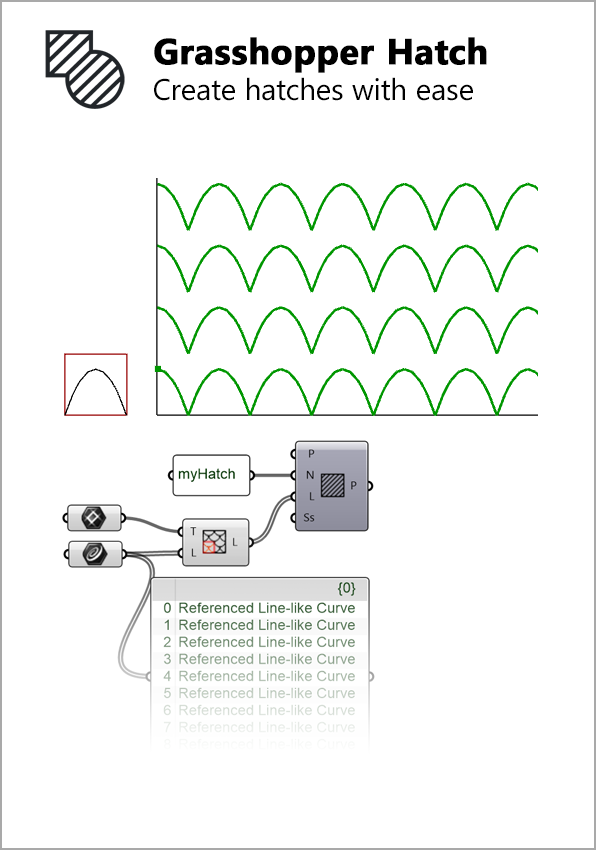 GH Create Hatch
Generate, edit and save hatch patterns through Grasshopper components for repeatable drawing workflows.
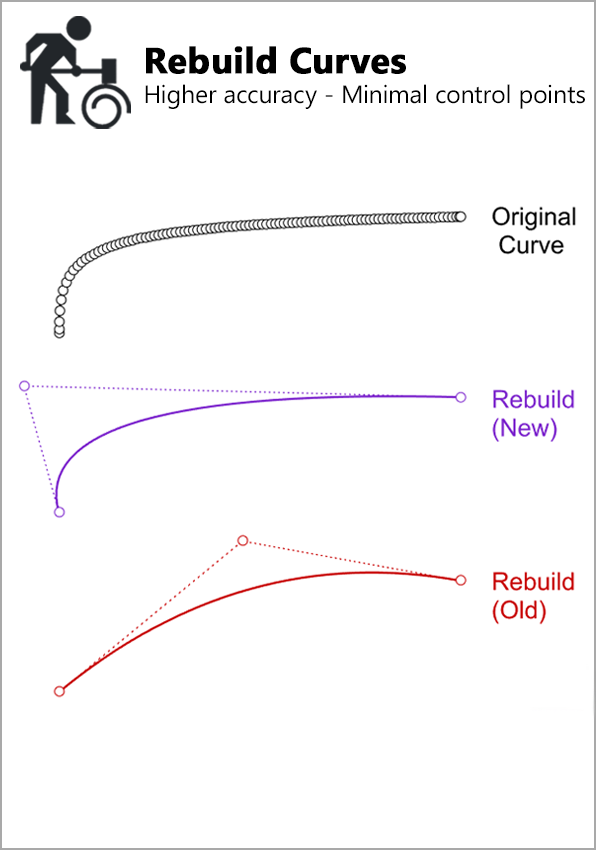 New Rebuild
Adaptive Rebuild technology improves curve fitting for a given control-point count, helping simplify geometry for further modelling.
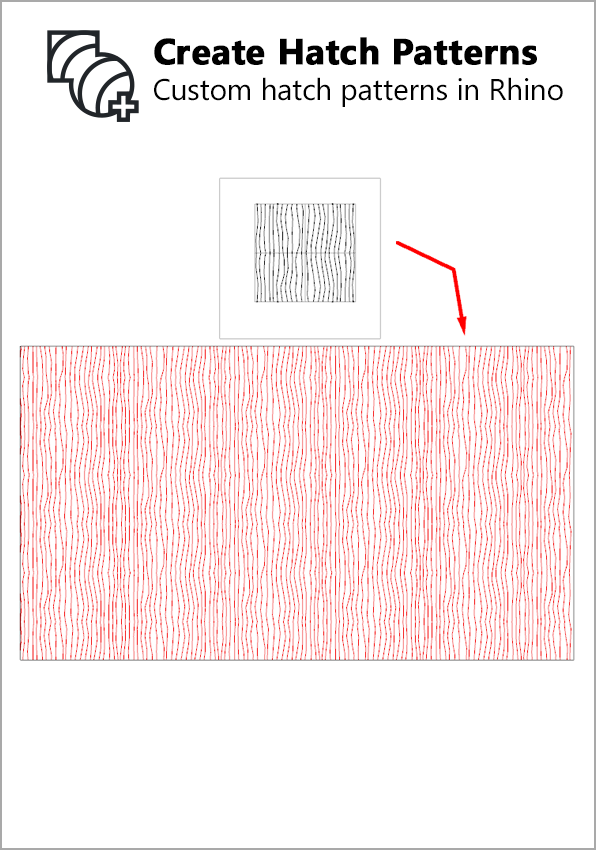 Create Hatch Patterns
Build hatch patterns from Rhino 2D geometry instead of relying solely on imported pattern files.
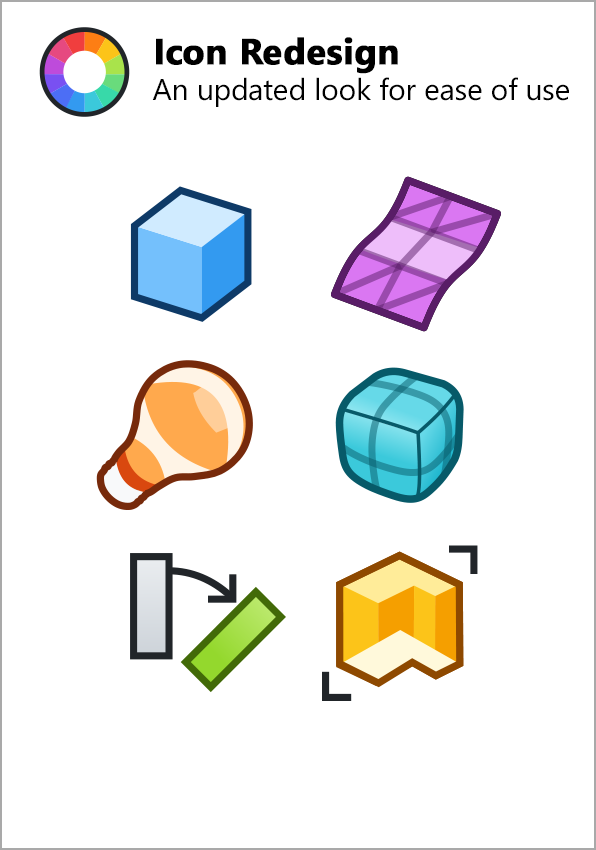 Icon Redesign
Updated, colour-coded toolbar icons help distinguish tools within Rhino’s interface.
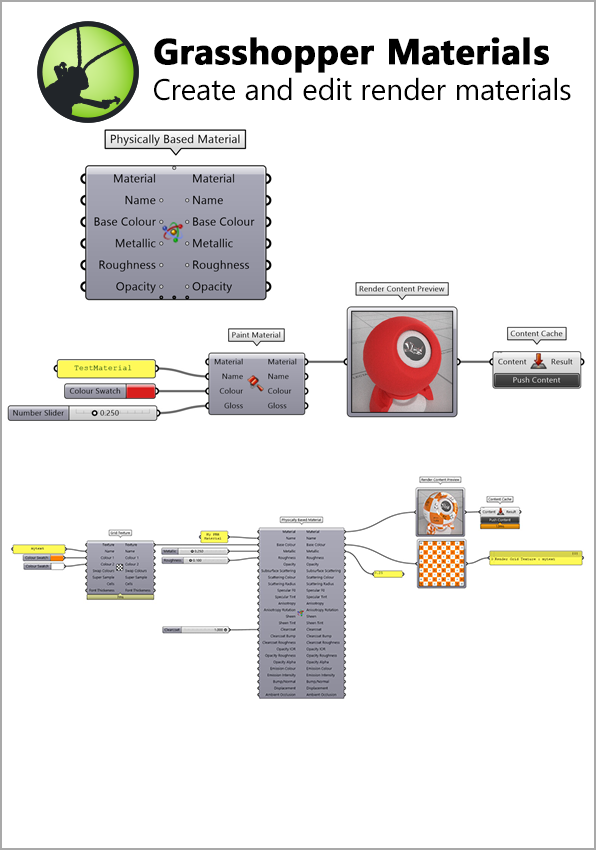 GH Render Materials
Create and manipulate rendering materials within Grasshopper to connect visual properties with parametric design.
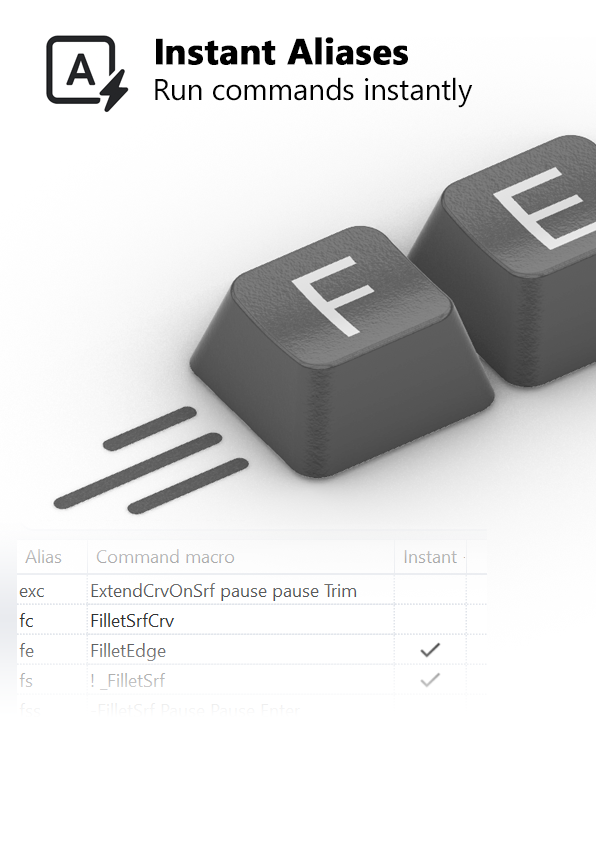 Instant Aliases
Run configured aliases without an additional Enter keystroke for frequently used modelling commands.
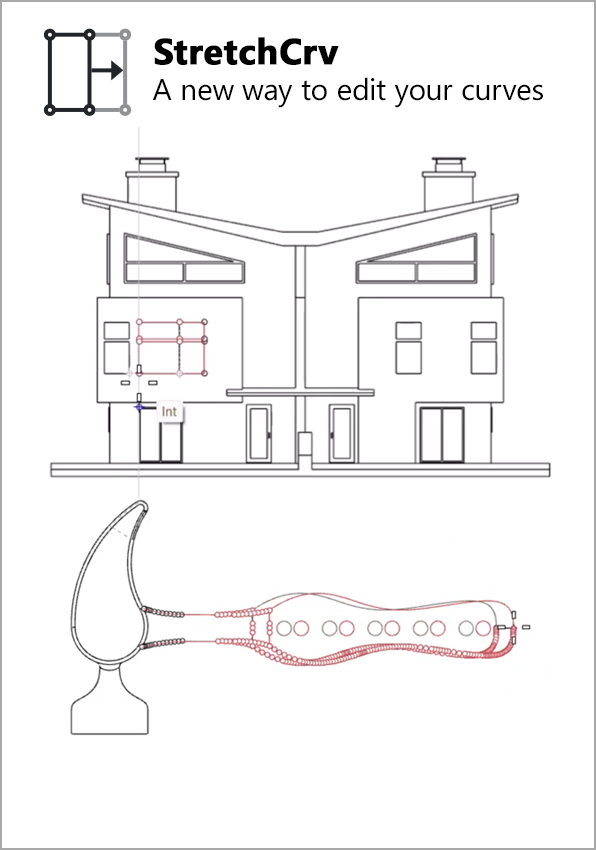 Stretch Crv
Use crossing selections to capture curve control points and stretch or transform the selected geometry.
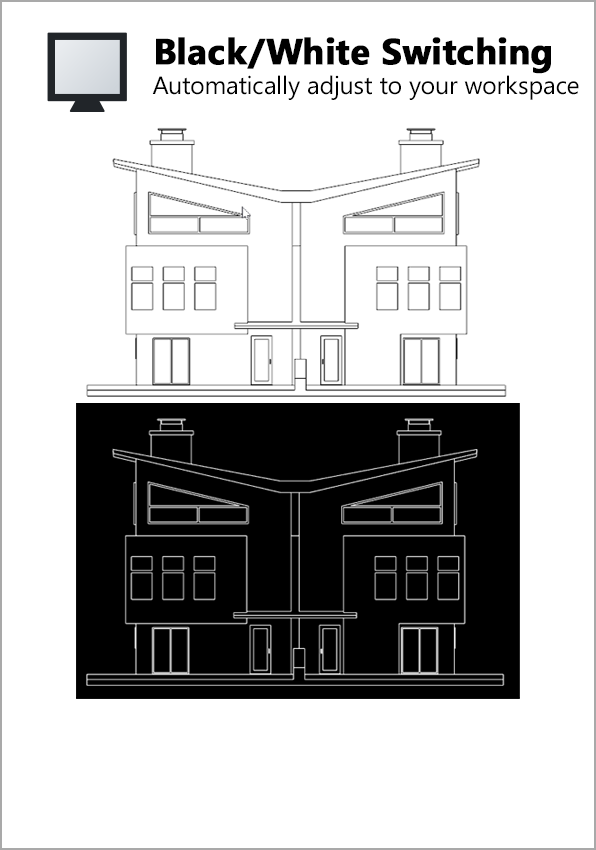 Black White Switching
Keep pure black or white object wires readable by switching their display colour against the viewport background.
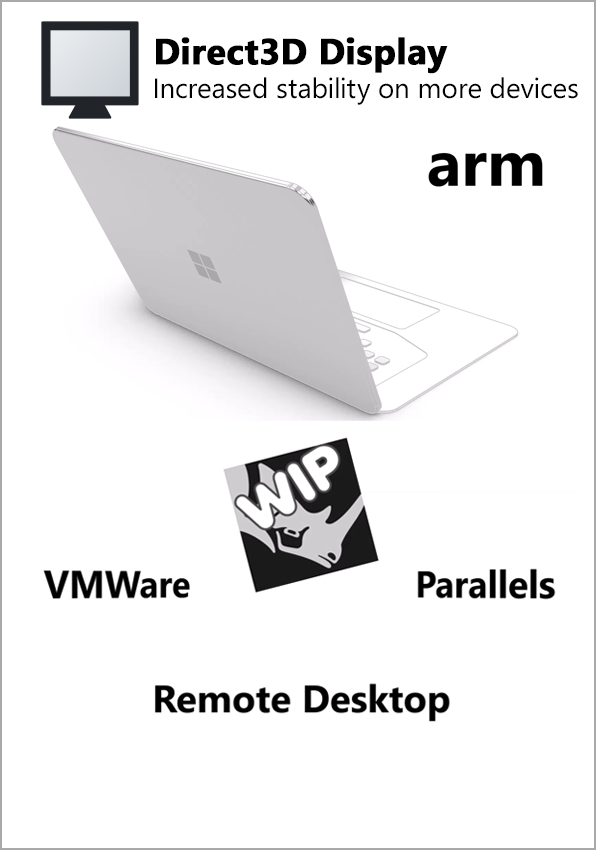 Direct3D
Rhino 9 uses Direct3D as its primary GPU-accelerated display technology on Windows.
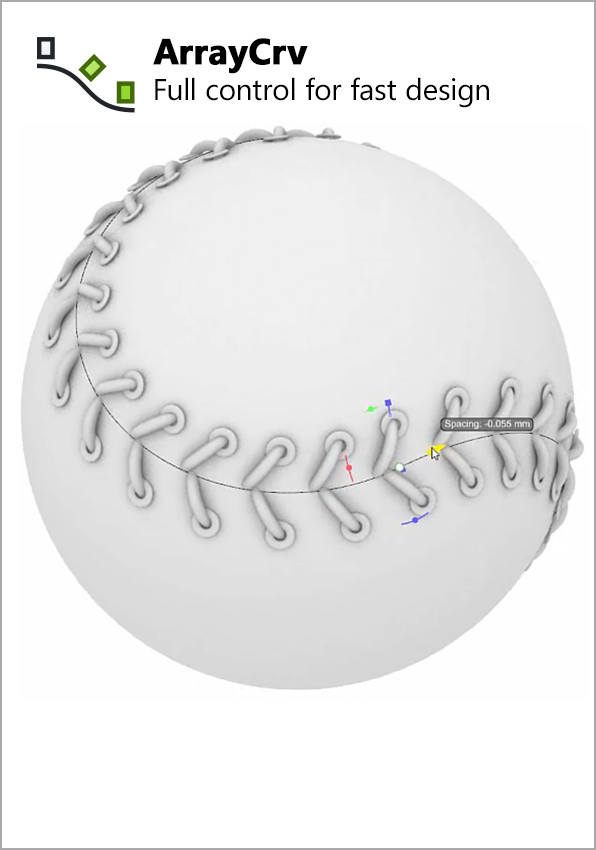 Array Curve
Repeat objects along a path with interactive controls for developing patterns and repeated design features.
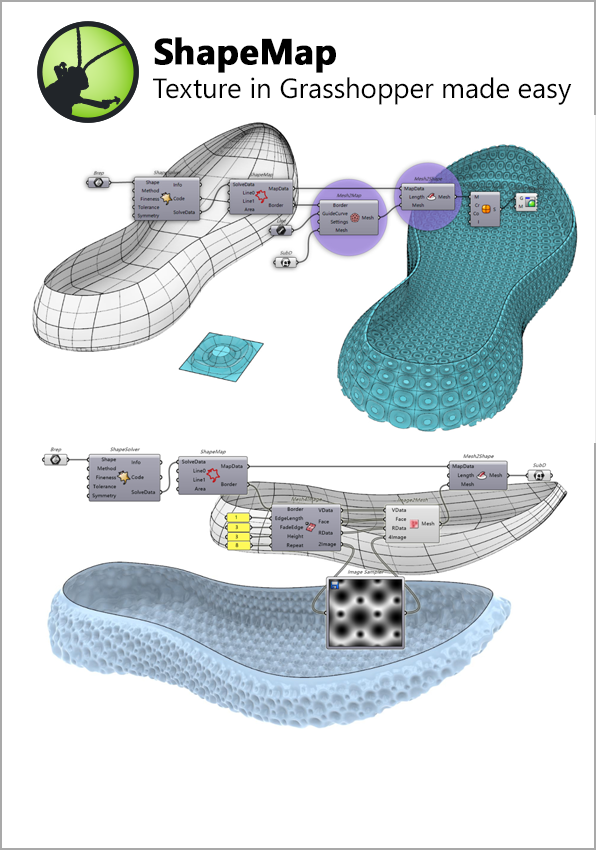 Shape Map
Map two-dimensional patterns and texture-based geometry onto complex three-dimensional shapes with distortion control.
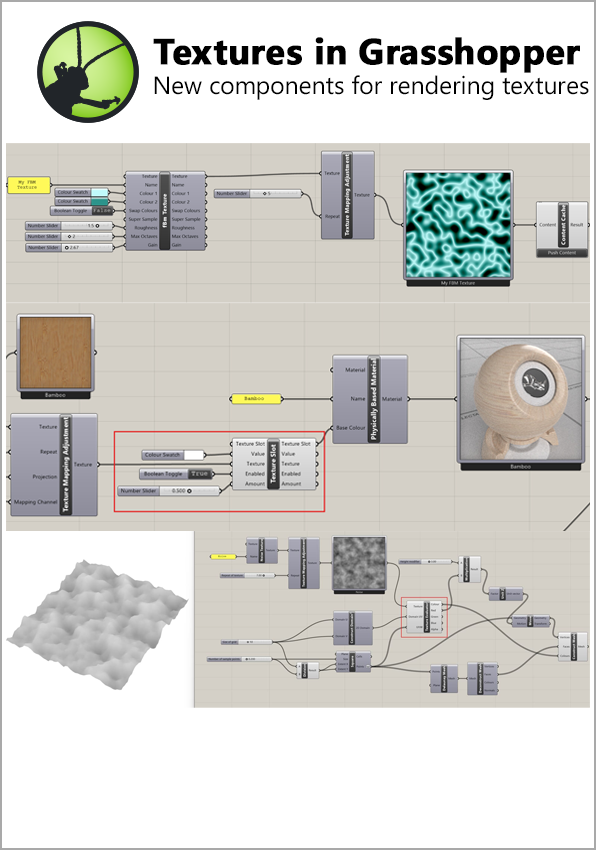 GH Render Textures
Create, edit and query procedural or bitmap textures through Grasshopper for parameter-driven visual variations.
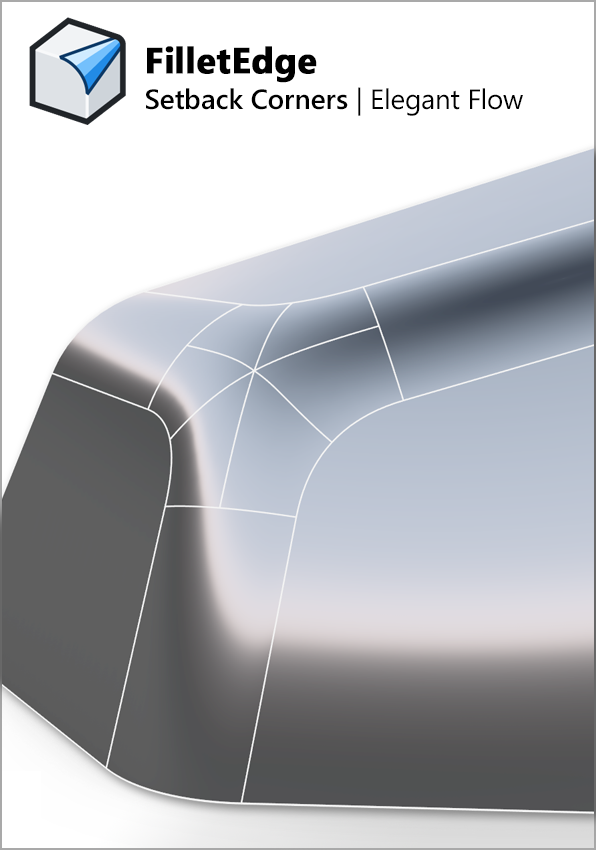 Fillet Edge
Create setback corner transitions with FilletEdge and BlendEdge for more controlled junctions between rounded edges.
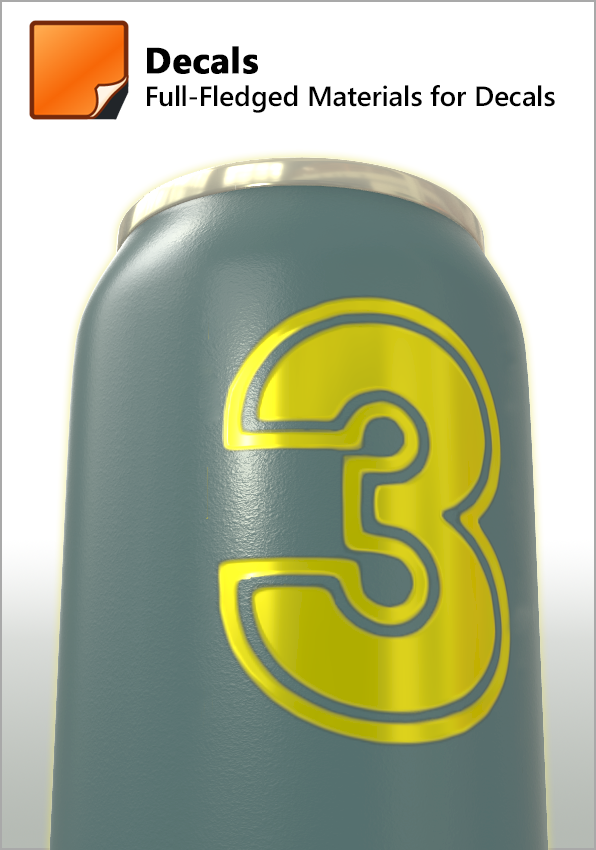 Decals
Apply decals using material properties such as reflectiveness and bump, rather than only a simple image texture.
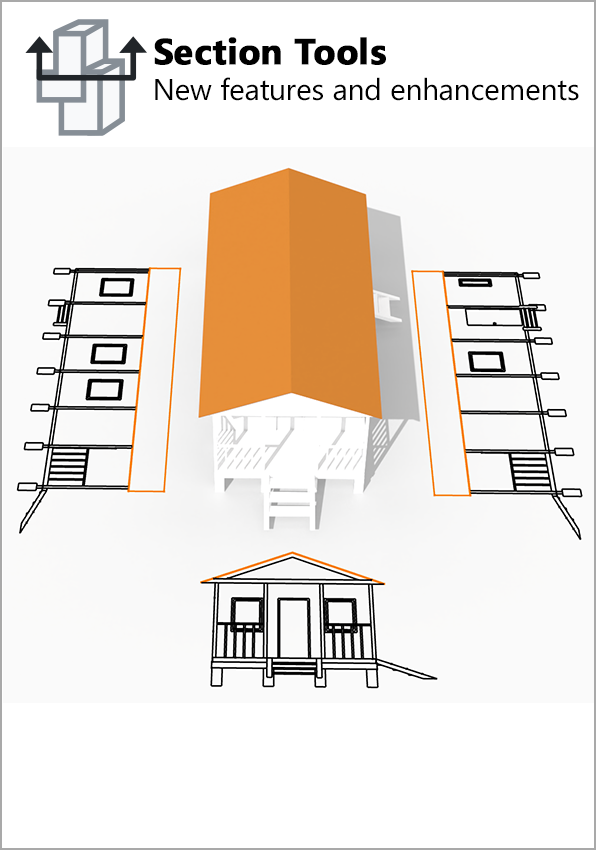 Section Tools
Create and edit two-dimensional section drawings with enhanced SectionTools drafting workflows.
 Inflate Crv
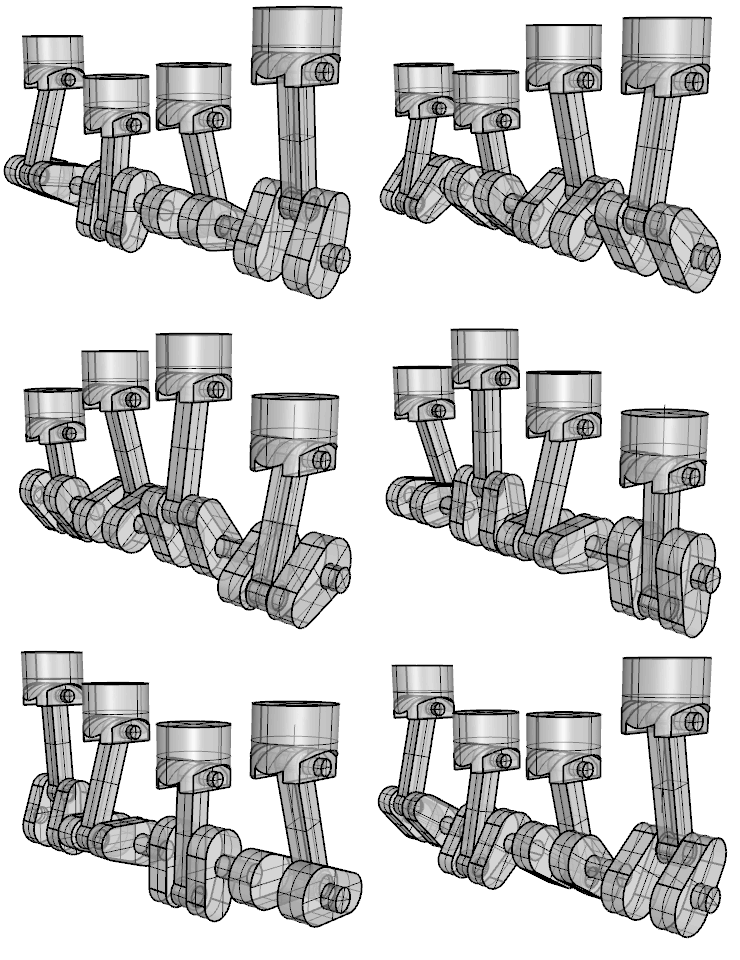
Turn closed planar outlines into inflated mesh or SubD forms, useful for lettering, signs and rounded design details.
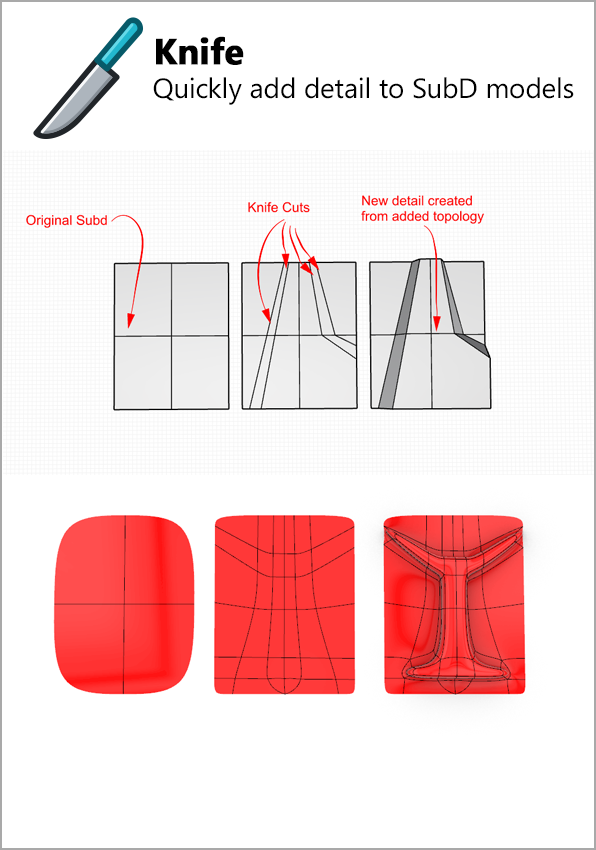 Knife
Knife
Draw cuts across SubD geometry to introduce edges and develop more precise face layouts.
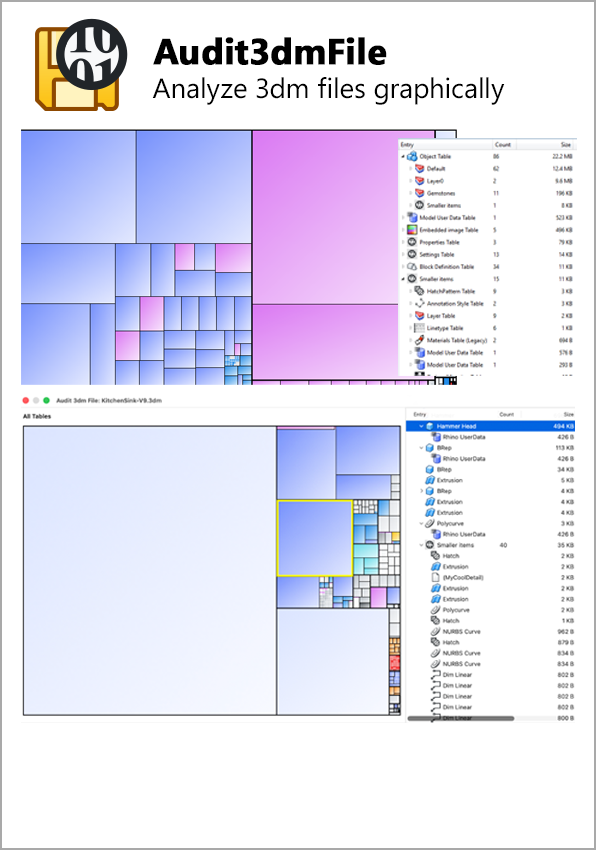 Audit 3dm
Identify space-consuming objects and data with Audit3dmFile’s graphical view of file contents.
Choose your Rhino 9 licence
Select the commercial, upgrade, educational or lab configuration required. Check the selected licence’s eligibility and user count before ordering; contact 3D ANZ if you need help choosing.
Computer requirements and compatibility
Before ordering, check that your computer and operating system meet the Rhino system requirements. Baseline requirements are not a recommendation for an optimum workstation. Larger models and demanding workflows may need more capable hardware. Plugins have their own platform and version requirements.


 Bring it in. Work with it. Take it wherever it needs to go.


 Cage
Cage Taper
Taper Twist
Twist Maelstrom
 Stretch
 Splop
Splop CageEdit
 Flow
Flow Bend
Bend